
I can’t tell you how many times I’ve found my phone draining battery faster than usual and the culprit turns out to be apps running in the background. It’s one of those things that, over time, you just learn to live with.
But then, after a bit of digging, I realized there are simple ways to manage it, especially now that Android 15 has introduced some nifty features. If you’re wondering how to stop apps running in the background on Android, you’re in the right place.
Let’s talk through several methods that will not only help save your battery but also give you control over which apps use up your resources. These tips are quick, easy, and will make a noticeable difference to your phone’s performance.
What Are the Drawbacks of Force Stopping Apps?

Before we get into the how-to steps, let’s take a moment to understand force stopping apps, which is one of the most effective ways to prevent them from running in the background.
Force stopping an app might seem like an instant fix, but there are a few things to consider. Force stopping an app kills it temporarily. Once you open it again, the app starts fresh, which can be a good thing or a bad thing depending on your needs.
- Battery Life: Force stopping apps can save battery in the short term, but the app will use more power when reopened since it has to reload everything.
- App Performance: Some apps may take longer to restart if they are force stopped, which could affect your experience if you’re frequently using the app.
- Notifications: If an app is force stopped, it won’t send you notifications until you open it again. This can be helpful if you want to silence distractions but also means you might miss important updates.
So while force stopping is effective, you’ll want to use it sparingly. Now let’s explore the best ways to stop apps from running in the background!
What’s New in Android 15 for Managing Background Apps and Services?
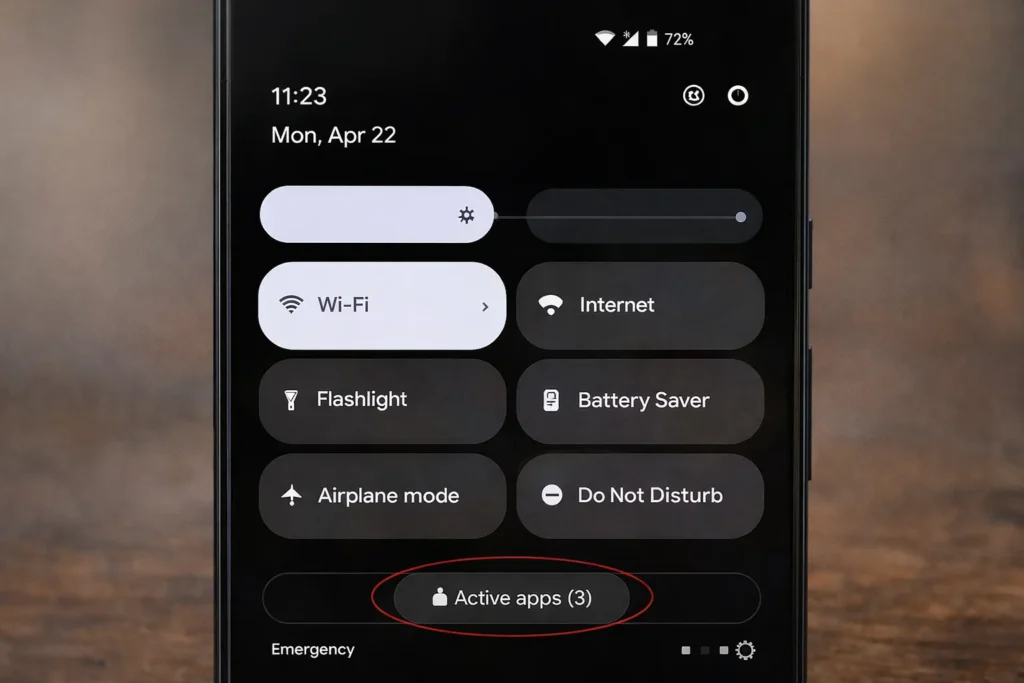
Android 15 has made managing background apps a whole lot easier, and the best part is that it doesn’t require a deep dive into settings. The new “Active Apps” indicator is a game-changer. Here’s how it works:
- Quick Settings: Just swipe down twice from the top of your screen to open the full Quick Settings menu.
- Active Apps Indicator: At the bottom, you’ll see a small pill-shaped icon with the number of apps running in the background.
- Stop Active Apps: Tap the pill, and a list of active apps will pop up. You can tap Stop next to any app you want to close.
This feature is especially useful for quickly seeing what’s running and eliminating unnecessary apps without having to navigate through multiple menus.
How to Stop Apps Running in the Background: Step-by-Step Guide
Managing background apps is a simple process, but the steps vary depending on your Android version and preferences. Let’s break it down into actionable steps.
Step 1: Close Active Background Apps (Android 15 and Up)
If you’re using Android 15 or newer, you can use the Active Apps feature. Follow these steps:
- Swipe Down Twice: Open your Quick Settings menu.
- Find the Active Apps Pill: Look for the small pill-shaped icon at the bottom.
- Tap the Pill: This will show you all the apps currently running.
- Stop Apps: Tap Stop next to the apps you want to close.
This method is quick, easy, and very effective for a fast cleanup of your phone.
Step 2: Force Stop Specific Apps
This method is perfect if you want to shut down a stubborn app that won’t stop running on its own. Here’s how you can force stop apps:
- Open Settings: Go to Settings > Apps (or App Manager).
- See All Apps: Tap on See all apps to find the app you want to stop.
- Force Stop: Select the app, and tap Force Stop. Confirm by selecting OK.
This is the most effective way to kill apps that are draining your resources, but remember, they’ll restart once you open them again.
Step 3: Restrict Background Battery & Data Usage
Want to prevent apps from using up your battery and data without fully stopping them? Android gives you the option to restrict background usage for both battery and data.
- Battery Restriction:
- For Google Pixel: Go to Settings > Apps > [App Name] > App battery usage, then toggle off Allow background usage.
- For Samsung Galaxy: Select Restricted under the Battery menu to prevent unnecessary battery consumption.
- Data Restriction:
- Go to Settings > Apps > [App Name] > Mobile data & Wi-Fi, then toggle off Background data to stop the app from using data when not in use.
This way, the app still runs but won’t affect your battery or data plan in the background.
Step 4: Use Developer Options (Advanced)
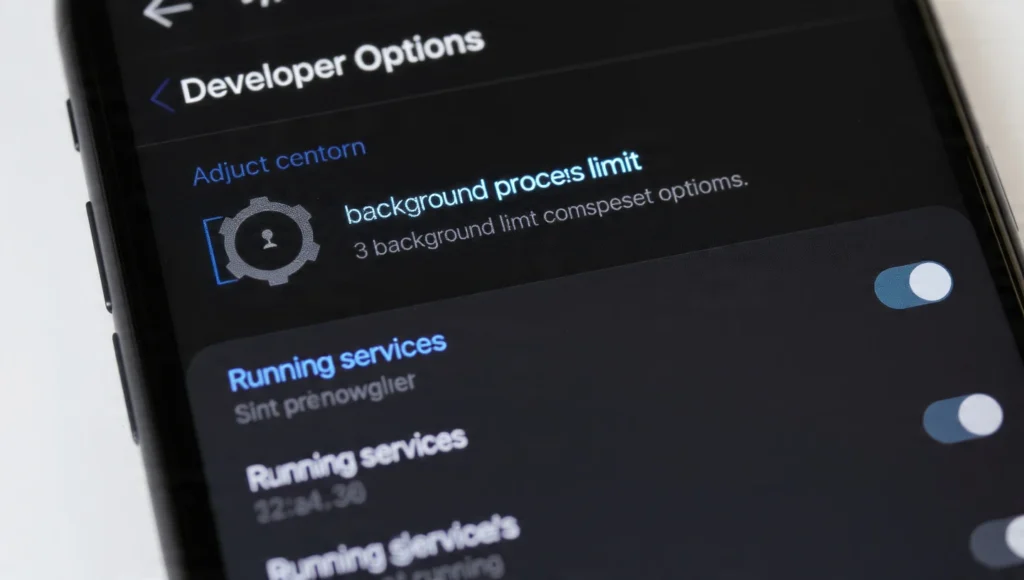
For tech-savvy users, Developer Options offer deeper control over how many processes can run at once. Here’s how to enable and use it:
- Enable Developer Mode: Go to Settings > About phone, and tap Build number seven times.
- View Running Services: Go to Settings > System > Developer options > Running services. You’ll see a list of services that are consuming RAM. You can select an app and tap Stop to kill it.
- Set Background Limit: In Developer options, scroll to Apps, then tap Background process limit. You can limit background processes to a specific number or select No background processes.
Using Developer Options is an advanced method that gives you precise control over how apps run on your device.
Step 5: Standard App Switcher
If you just need to clean up the apps you recently used, the Standard App Switcher is your best bet. Here’s how:
- Swipe Up: From the bottom of your screen, swipe up and hold (or tap the square Recents button).
- Clear Apps: Swipe up on individual app cards to close them, or scroll to the far left and tap Clear all to shut down all recently opened apps.
This method is great for a quick app cleanup and can help keep your phone running smoothly.
Frequently Asked Questions
1. Can force stopping apps hurt my phone?
Force stopping apps won’t harm your phone, but it can affect app performance. When you reopen an app, it has to reload, which might use more resources temporarily.
2. How do I see which apps are using the most battery on Android?
To see which apps are using the most battery, go to Settings > Battery > Battery usage. This will show you a list of apps that have used the most battery.
3. Why should I restrict background data on apps?
Restricting background data prevents apps from using your data when they’re not in use, saving you data and improving battery life. It’s especially useful for apps that tend to refresh constantly.
4. Is the Active Apps feature in Android 15 available for all users?
Yes, the Active Apps indicator is a new feature introduced in Android 15, and it is available for all Android 15 users.
Conclusion: Take Control of Your Android Experience
Managing background apps is an essential part of keeping your Android phone running smoothly.
Whether you’re using Android 15’s new Active Apps feature or force stopping apps manually, there are plenty of ways to prevent unnecessary background processes from draining your battery and data.
It’s all about finding the methods that work best for you and maintaining a clean, efficient device.
Quick Tip: Make it a habit to check your active apps once a week to ensure that nothing is running in the background unnecessarily. Your phone—and your battery—will thank you!