

In the ever-evolving world of SEO, there are still some niche scenarios where adding meta keywords to your WordPress site may be beneficial. Although Google stopped using meta keywords in its ranking algorithm back in 2009, other search engines or specific use cases may still find them useful. If you’re looking to add meta keywords to your WordPress site without a plugin, this guide will walk you through the steps to do so, ensuring you’re able to take full control over the process.
We’ll explore two methods for adding meta keywords manually in WordPress. Whether you’re a beginner looking to implement basic SEO or someone with specific needs for adding keywords, these methods will help you make informed decisions.
Important Note: Google no longer uses the meta keywords tag in its ranking algorithm. Instead, focus on naturally integrating keywords in your content, titles, and meta descriptions, as these elements have a much greater impact on SEO. The methods outlined here are primarily for users who still want to add meta keywords for other, less common search engines or custom purposes.
Method 1: Using Custom Fields for Dynamic Keywords (Recommended)
The first method we’ll discuss involves using Custom Fields to add dynamic, post-specific keywords. This approach allows you to set effective unique keywords for SEO for each individual page or post, offering the most control without overloading your website with plugins.
Step 1: Enable Custom Fields in the Post Editor
- Open the post editor for the page or post you want to edit.
- Click the three-dot menu icon in the top-right corner of the screen.
- Navigate to Preferences > Panels, and toggle the Custom Fields option to “On”.
- The page will refresh, and a new “Custom Fields” section will appear beneath the main content editor.
Step 2: Create a “Keywords” Custom Field
- In the Custom Fields section, click Enter New under the “Name” column.
- In the Name field, type “keywords” (without quotes).
- In the Value field, type the keywords you want to use, separated by commas (e.g., “SEO tips, WordPress keywords, manual method”).
- Click Add Custom Field to save this data for the post or page. Repeat this process for all the posts and pages where you want unique keywords.
Step 3: Add PHP Code to Your Theme’s functions.php File
To ensure that the custom keywords are dynamically added to the HTML code of each page, you’ll need to edit the functions.php file.
- Caution: Always use a child theme when making changes to code. Direct edits to a parent theme’s files will be lost when the theme is updated. And always make sure to back up your WordPress site before making any changes.
- From your WordPress dashboard, navigate to Appearance > Theme File Editor.
- In the right panel, select the functions.php file for your active child theme.
- Scroll to the bottom of the file and paste the following PHP code:
function add_custom_meta_keywords() {
if ( is_singular() ) { // Checks if it’s a single post or page
global $post;
$custom_keywords = get_post_meta( $post->ID, ‘keywords’, true);
if ( ! empty( $custom_keywords ) ) {
echo ‘<meta name=”keywords” content=”‘ . esc_attr( $custom_keywords ) . ‘” />’ . “\n”;
}
}
}
add_action( ‘wp_head’, ‘add_custom_meta_keywords’ );
- Click Update File to save your changes.
The above code retrieves the value from your custom “keywords” field and inserts it into the <head> section of each specific post or page. This ensures that only the relevant keywords are added dynamically.
Method 2: Add Static Keywords Site-Wide
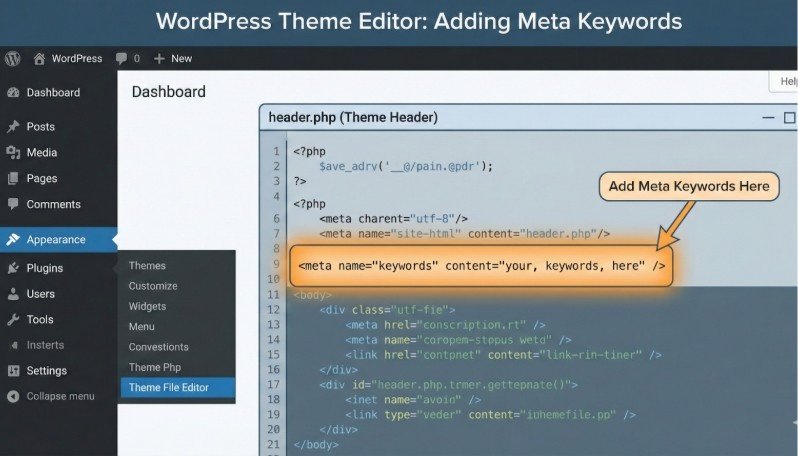
If you only need a single set of keywords for your entire website (e.g., a portfolio site, personal blog, or small business website), you can add static meta keywords across all pages by editing the header.php file. This method is simpler but lacks the flexibility that comes with using custom fields for post-specific keywords.
Step 1: Edit the header.php File
- Caution: As with the previous method, make sure you know how to use a child theme and back up your site before making any changes.
- From your WordPress dashboard, go to Appearance > Theme File Editor.
- In the right-hand panel, select header.php from the list of theme files.
Find the <head> section of the file and add the following meta tag before the closing </head> tag:
<meta name=”keywords” content=”your site-wide keywords, separated by commas” />
- Replace “your site-wide keywords, separated by commas” with your chosen keywords (e.g., “portfolio, graphic design, WordPress developer”).
- Click Update File to save your changes.
- Now, every page and post on your site will include the same meta keywords.
When to Use Meta Keywords and When to Skip Them
In 2025, it’s crucial to remember that meta keywords are no longer a key factor in Google’s ranking algorithm. While they may be used by some niche search engines or directories, focusing your efforts on high-quality content, page speed, backlinks, and user experience is far more important for SEO success.
For most WordPress websites, however, you should prioritize optimizing your content, meta descriptions, titles, and images, rather than overloading your pages with meta keywords. Here’s when you might want to consider using meta keywords:
- Niche search engines: If your content is being indexed by lesser-known search engines that still use meta keywords.
- Custom purposes: You would want to understand what meta keywords are for specific marketing or tracking purposes, as this concept is important to know.

Frequently Asked Questions
1. Are meta keywords still important for SEO?
No, meta keywords are no longer a ranking factor for major search engines like Google. Focus on creating high-quality content and optimizing your titles, meta descriptions, and headings for better SEO.
2. Can I add meta keywords to WordPress without a plugin?
Yes, you can manually add meta keywords by editing the header.php or functions.php files in your theme, or by using the Custom Fields feature for dynamic keywords on a post-by-post basis.
3. How do I make sure my keywords are used correctly in WordPress?
Use keywords naturally in your content, titles, and meta descriptions. Focus on relevancy and avoid keyword stuffing. For better results, also use tools like Yoast SEO to optimize content.
4. Should I use a plugin to add meta keywords?
While using plugins like Yoast SEO can simplify the process, adding meta keywords manually allows you to maintain full control over your site’s code and avoid extra plugin bloat.
Moving Beyond Meta Keywords
While adding meta keywords to your WordPress site is a simple and controlled way to make minor adjustments to your SEO, remember that modern SEO practices focus on content quality, user engagement, and other technical factors. Meta keywords are no longer a major SEO ranking signal, so use them only if you have specific needs or are targeting niche search engines.
With the methods outlined here, you now have the tools to add meta keywords manually and control your SEO efforts more precisely. However, always prioritize creating valuable content that answers your users’ needs and optimizes your site’s overall user experience.